Orc Incremental Demo Save Transfer
Official Demo-to-full-game save compatibility guidance with a cautious verification flow and no invented export, import, rename, merge, or migration procedure.
- Published
- Updated
- Last checked
Quick facts
- Full-game compatibility
- Confirmed
- Special transfer steps
- Not required
- Demo uninstall
- Save survives
- Safety step
- Copy the full save folder before manual operations.
Let the supported path work first
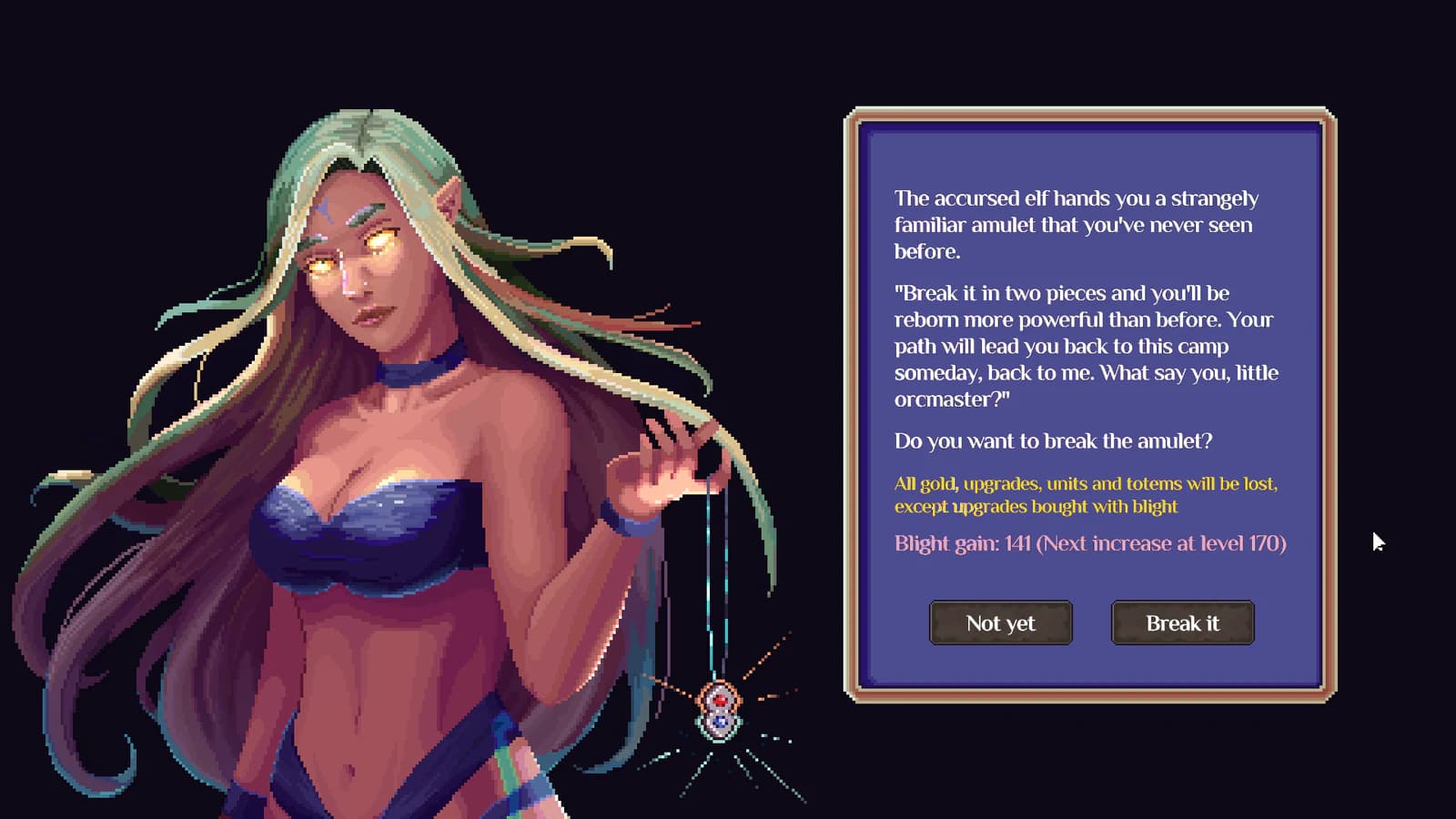
The official compatibility statement above means there is no authored export/import recipe to follow. The Dark Rebirth image is thematic progression art; it does not show migration, a file format, or a transfer result.
Before launching the full game, close the Demo and preserve a dated copy of the full Windows save folder. Then use the same Steam account and allow the normal launch path to complete. Do not rename or move individual files in an attempt to help detection.
Use save location for the official Windows folder and Steam Cloud for the separately stated backup boundary.
Record a clean first launch
Capture enough context to explain the result without exposing private account information.
| Field | Record |
|---|---|
| Demo build | Last visible version or date |
| Full-game build | First launched version |
| Steam account | Same-account confirmation only |
| Local backup | Date and separate storage location |
| Sync prompt | Exact choice shown, if any |
| First screen | Progress visible after launch |
| Difference | Specific missing or changed field |
Do not repeatedly relaunch when an unexpected prompt appears. Preserve the wording and local timestamps first.
Diagnose missing progress without forcing it
Confirm that the expected Windows account and Steam account are active. Check whether the official folder exists and whether its timestamps predate the first full-game launch. Record the observed in-game state precisely: missing unlock, earlier checkpoint, or entirely new state.
Keep “not visible” separate from “deleted.” A different profile, sync choice, or uninitialized release state can look similar. Without evidence, do not choose a cause.
Avoid unsupported migration recipes
There is no evidence here for exporting, renaming, merging, converting, or importing a file. Instructions that manipulate individual contents can destroy the clean baseline and make support harder.
If current official support publishes a recovery process, follow that exact source and preserve the existing folder first. Keep the announcement’s no-special-step guidance as a historical record rather than rewriting it.
Escalate with a reproducible record
A useful report includes both builds, operating system, same-account confirmation, local-folder presence, backup date, sync prompt, and exact missing progression. Exclude personal identifiers and do not attach save contents publicly unless official support requests them through an appropriate channel.
This workflow protects the evidence while testing the supported compatibility path once.
Separate compatibility from completeness
A save can be recognized while one field appears different. Record whether the profile loads, which systems are visible, and the earliest specific mismatch. Do not collapse partial progress into “transfer failed” before checking the build and account context.
Likewise, a new-looking first screen may be onboarding rather than an empty profile. Capture the prompt and follow only normal in-game navigation. If the expected state remains absent, stop with the original folder and dated copy preserved. This gives official support a clean baseline instead of a sequence altered by attempted conversions.
Official sourceVerification boundary
- Build boundary
- official Demo-retirement announcement
- Evidence check
- Still unknown
- internal file format, manual merge behavior, official non-Windows paths
Frequently asked questions
- What is verified about Demo Save Transfer?
- The official announcement says Demo saves are compatible with the full game, require no special transfer steps, and survive Demo uninstall. Boundary: official Demo-retirement announcement. Checked 2026-08-28. Copy %APPDATA%/OrcIncremental before any manual file operation, close the game first, and do not rename, move, or edit individual save contents.
- What should I do if expected Demo progress does not appear?
- Stop before changing files. Confirm the Steam account, game build, and local folder state, create a dated folder copy, then record the exact screen and any Steam sync prompt for troubleshooting.
Source ledger
- End of Demo is tomorrow (Jul 11th)
steam-announcement ·